
The article describes how to adjust the import settings and the import statistic page.
Import settings
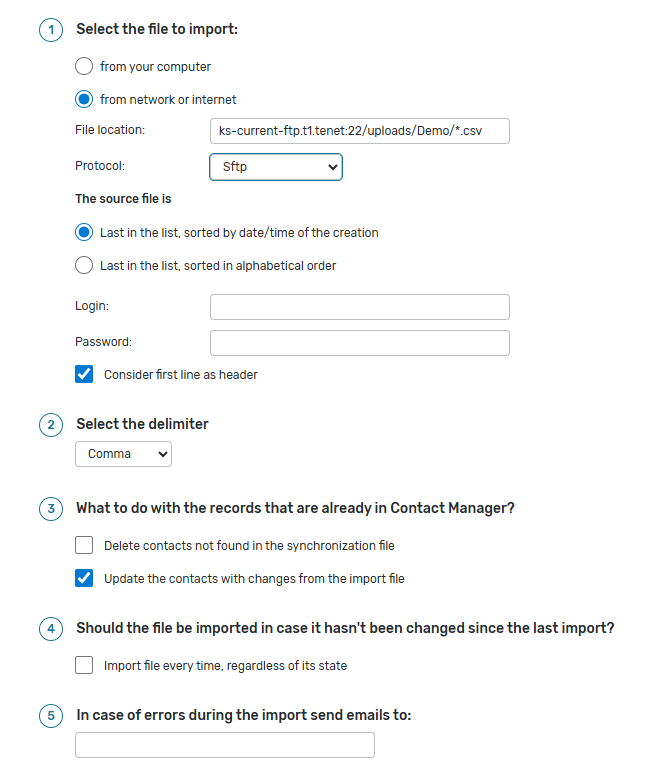
There are the following import settings.
-
Select from your computer to browse for data file located on your computer.
-
Select from network or internet if your data source is located remotely and indicate path to it.
-
If an import of the file from network or internet was selected, select one of the protocols.
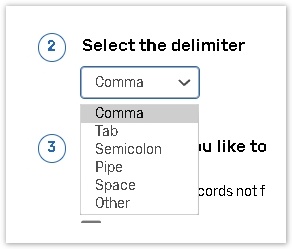
Comma. Comma-separated values (CSV) is a type of data format in which each piece of data is separated by a comma. This is a popular format for transferring data from one application to another, because most database systems are able to import and export comma-delimited data.
Tab. A tab-delimited text file is a text file whose units of text are separated by a tab character. This text format is widely accepted for creation and viewing by most spreadsheet programs and editor applications.
Semicolon. The Semicolon Delimiter A PL/SQL program is made up of a series of declarations and statements.
Pipe. It is a text file in which the pipe character '|' is used to separate fields. It is a text file that stores information in a structured way, having for each line multiple values, separated each other through the 'pipe' symbol.
Space. This is a test file that is separated by a space. Use space as delimiter when you want to treat multiple spaces as one.
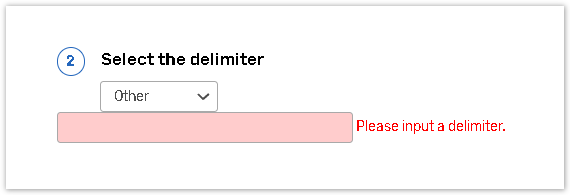
If you use data file with atypical delimiters select the Other option and input delimiter you used into the text field.
-
You can delete the contacts not found in the file, if required, by checking the appropriate check box;
-
If the file contains the updated contacts, and you need to update them in your contact manager, choose Update the contacts with changes from the imported file;
-
Check the Import file every time, regardless of its state box if you want to import the file every time, even if it has not been changed after the last import (the setting is optional);
-
Specify an email in case of errors during the import emails to be send to (the setting is optional);
Import Statistic
You can check the statistics of imported contacts.
On the Import Contacts page, you can check the following information:
-
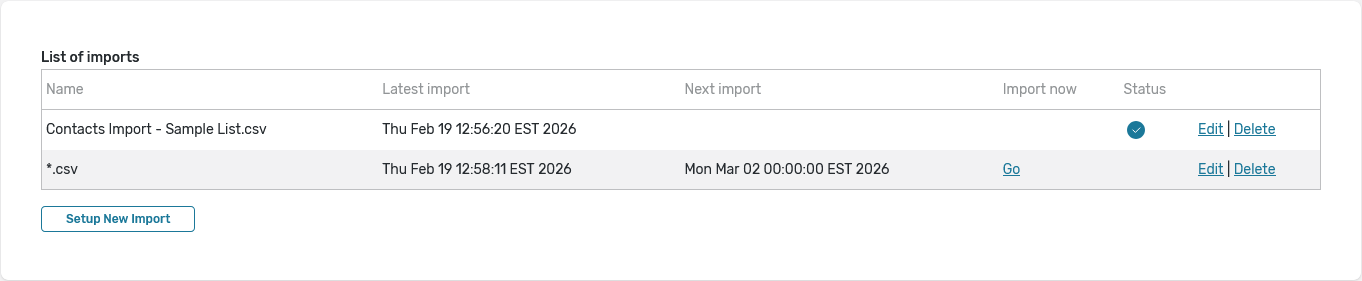
The Latest import (1) column displays the date and time of the latest scheduled imported file.
-
The Next import (2) column displays the date and time for the import that you arranged.
-
The Import now (3) column allows you to import your file right now. Click the Go button to import your file.
Status Column
The Status column displays the following types of status of your file:
-
Successful import
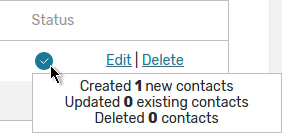
The icon displays the number of created contacts. Hover over the icon to see the statistical information.
-
Import Errors
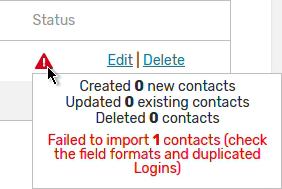
The icon appears if there are some errors with your file. Hover over it to see the number of failed and imported objects.