
Dashboard Folders
Dashboard Folders let you organize your dashboards into named groups. Instead of scrolling through a long flat list, you can arrange dashboards by project, location, team, time period, or any structure that fits your workflow.
Overview
When a project has many dashboards, finding the right one quickly becomes difficult. Dashboard Folders solve this by allowing Dashboard Admins to group dashboards in a way that makes sense for their organization.
By default, there are no folders created. Once you start adding new folders, they will appear at the top right pane of the Dashboards tab, sorted by newest first. Dashboards that have not been placed into any folder appear below the folders, also sorted newest first.
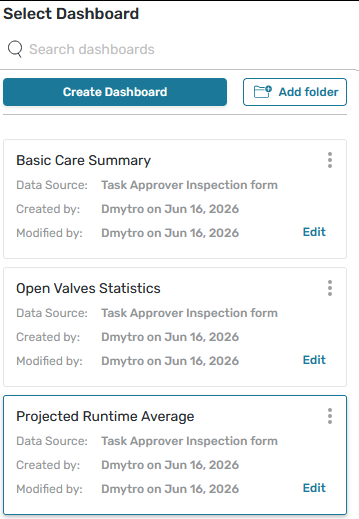
Getting started
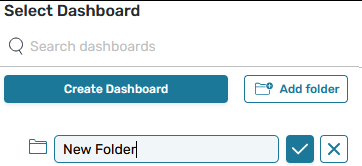
Creating a folder
To create a folder:
-
Open the Dashboards tab
-
Click Add folder
-
Enter a name and confirm.
-
Folder names can be up to 512 characters long.
-
Folder names must be unique within a project. If you try to create or rename a folder to a name that already exists, you will see: "A folder with this name already exists. Please choose a different name."
Adding dashboards to a folder
A dashboard can be created directly inside a folder, or moved into one later. To move an existing dashboard:
-
Open the dashboard card menu (⋮)
-
Select Move
-
Choose the destination folder.
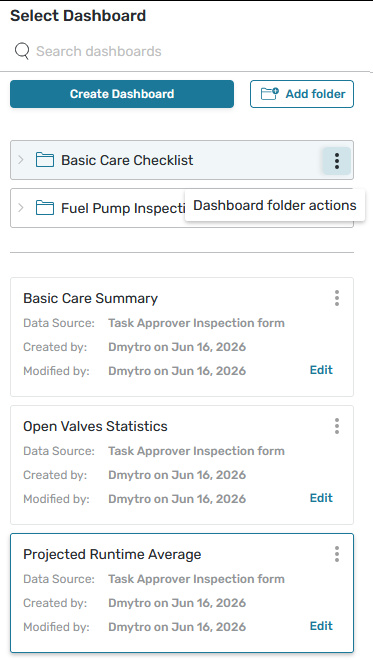
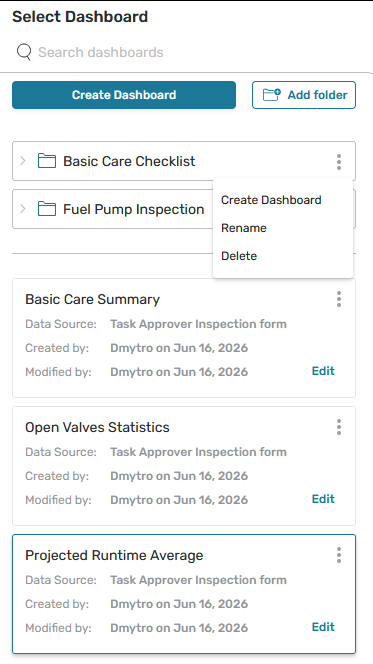
Managing folders
From the folder menu, you can:
-
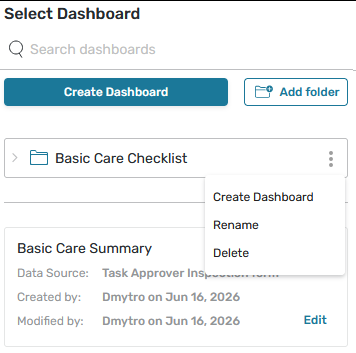
Rename a folder - update the folder name at any time
-
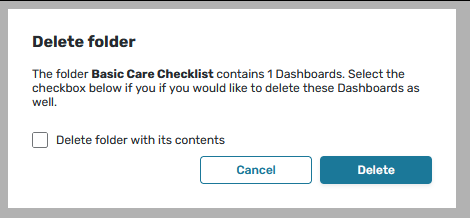
Delete a folder - when deleting a folder that contains dashboards, a confirmation dialog will appear. You can choose to delete the folder only (dashboards are moved back to the unfoldered list) or delete the folder along with all its dashboards.
Limitations
-
Folders are single-level only - you cannot create a folder inside another folder.
-
Drag-and-drop reordering is not supported in the current version. Use the Move dialog to move dashboards between folders.
-
The Portal view of dashboards is not affected by folder structure in this release. Portal-side folder arrangement is planned for a future update.
Sub-users on multi-access accounts
If your account uses multi-access (sub-users), here is how folder behavior differs for those users:
Sub-users can:
-
View the folder structure created by the Admin
-
Open dashboards within folders
-
Create dashboards within folders
-
Move dashboards between existing folders
Sub-users cannot:
-
Create new folders
-
Rename and delete folders
The folder structure is shared - any changes made by an Admin (such as creating or deleting folders) are immediately visible to all sub-users on the account. Sub-users can see all folders, including folders that appear empty to them because they do not have access to the dashboards inside. Folder-level permissions are not supported in this release and are planned as a separate future improvement.
Frequently asked questions
What happens to my dashboards if I delete a folder?
Dashboards inside the folder are not deleted. They are moved back to the unfoldered section of the Dashboards tab, where you can reorganize them.
Can I have dashboards outside of any folder?
Yes. Dashboards do not need to be in a folder. Any dashboard not placed in a folder will appear below the folder list.
What order do folders appear in?
Folders are sorted newest first by default, the same as dashboards. Dashboards not in any folder appear below all folders, also sorted newest first.
Can Portal users create or manage folders?
Not in this release. Portal-side folder management is planned as a future improvement.