
The search field allows you to find and replace question and answer options texts throughout the whole survey.
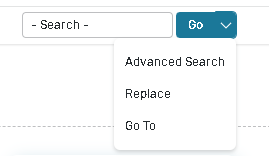
Search option gives you an ability to:
-
Search for the particular survey.
-
Advanced search within a single survey.
-
Find and Replace within a single survey.
-
To search for the text within a single survey:
-
Select the survey from the Surveys home page.
-
Click the Edit button from the Survey Information pane in the right part of the screen.
-
Input search text in the Search text field.
-
Click the Go button.
-
Text that matches your search criteria will be highlighted
-
-
Advanced Search looks for an input text within the single survey:
-
Select the survey from the Surveys home page.
-
Click the Edit button from the Survey Information pane in the right part of the screen.
-
Click the down arrow next to the Go button and select the Advanced Search option.
-
Input text to find.
-
Click the Find Next button to start searching.
-
Text that matches your search criteria will be highlighted.
-
-
Find and Replace tool looks for an input text within the single survey and replaces it with the different text:
-
Select the survey from the Surveys home page.
-
Click the Edit button from the Survey Information pane in the right part of the screen.
-
Click the down arrow next to the Go button and select the Replace option.
-
Input text to find and text to replace.
-
Click the Replace button to replace first found match or Replace All to replace all matches in the survey.
-
-
The Go to tool allows you to navigate to the question you need just in a second:
-
Select the survey from the Surveys home page.
-
Click the Edit button from the Survey Information pane in the right part of the screen.
-
Click the down arrow next to the Go button and select the Go to option.
-
Input text to find and click the Go to button.
-